Android 17 Privacy: 7 Powerful Security Features to Use
Your phone knows more about you than most people do. It holds your private messages, photos, contacts, banking apps, passwords, location history, and personal documents.
That is why a small security weakness can become a serious problem.
Android 17 privacy features aim to give users stronger protection without making everyday phone use difficult. According to Google’s official https://developer.android.com/about/versions/17/features?utm_source=chatgpt.com , the update adds new safeguards for contact sharing, network privacy, app installation, USB connections, and app security.
Some protections work automatically. Others need to be turned on or supported by app developers. This guide explains seven important Android 17 security features, how they work, and what they mean for you.
What Is New in Android 17 Privacy?
Android 17 is not just a visual update. Google describes it as bringing next-generation privacy and security improvements to Android.
The biggest change is that Android is becoming more careful about how apps access sensitive information. Instead of giving an app broad access to your phone, Android 17 can give it only the small amount of information it actually needs.
For example, an app may need one person’s phone number. It should not automatically receive your entire contact list.
Android 17 also makes it harder for harmful apps to read verification codes, install unsafe software, use a USB connection, or learn which websites and services you access.
However, installing Android 17 does not make every risk disappear. You still need to check app permissions, install security updates, and avoid suspicious links.
Here are the seven most useful changes.
1. Android 17 Privacy Makes Contact Sharing Safer
Many apps ask for access to your contacts. Sometimes that access makes sense. A messaging or payment app may need a phone number so you can find a friend.
The problem is that traditional contact permission can expose your entire address book. That may include family members, co-workers, email addresses, phone numbers, and people who never agreed to share their information with that app.
Android 17 introduces the Android Contact Picker, a safer way to share contact information.
Instead of opening your whole contact list to an app, the picker lets you choose the exact contacts you want to share. The app can also request only specific details, such as a phone number or email address.
Why this feature matters
Imagine that a payment app asks you to select one person who should receive money. The app needs that person’s payment details, but it does not need the information of everyone you know.
The Contact Picker follows a simple privacy rule: give an app only what it needs.
This can reduce unnecessary data collection and limit the amount of personal information exposed if an app is later hacked or misused.
App permissions also matter when using automated shopping tools. Read about the [privacy risks of AI shopping agents] before allowing them to access personal or payment information.
How to use it
When a supported app opens the Android Contact Picker:
- Review what information the app is requesting.
- Select only the contact you want to share.
- Check whether it needs a phone number, email address, or both.
- Avoid giving full contact permission when selecting one contact is enough.
App developers must support the new picker, so it may not appear in every app immediately.
2. Android 17 Privacy Adds Stronger OTP Protection
One-time passwords, commonly called OTP codes, are used by banks, shopping services, email accounts, and social platforms.
An OTP may last only a few minutes, but that is still enough time for a harmful app to steal it.
Android 17 expands protection for SMS messages that use the WebOTP format. If an app can read SMS messages but is not linked to the domain named in the message, Android can prevent that app from reading the code for three hours.
The intended app can still receive the code. Other apps with SMS access may have to wait.
According to the official Android 17 behavior changes, this protection applies to apps running on Android 17 regardless of the API level they target.
Why OTP protection is powerful
Suppose you receive a login code from a banking website. A suspicious app on your phone may have SMS permission, but that does not mean it should be able to collect the banking code.
Android 17 checks whether the app is connected to the correct domain. This creates another barrier between your verification code and an unrelated app.
What you should do
You should still treat every OTP as private:
- Never send an OTP through chat or social media.
- Do not read a verification code to an unknown caller.
- Remove SMS permission from apps that do not need it.
- Use an authenticator app or passkey when a trusted service offers one.
- Never approve a login you did not start.
Android 17 privacy protection helps, but it cannot protect a code that you willingly give to a scammer.
OTP theft is not the only mobile banking risk. Learn [how to spot a fake bank alert before you lose money] before trusting an urgent financial message.
3. Advanced Protection Mode Creates a Strong Security Shield
Android 17 introduces Android Advanced Protection Mode, or AAPM. It is an optional setting that applies several strong protections through one control.
This mode is especially useful for people who face a higher risk of targeted attacks. That can include journalists, public figures, business leaders, activists, government workers, and anyone who stores highly sensitive information on a phone.
It can also help ordinary users who prefer stronger security and do not regularly install apps from outside Google Play.
According to Google’s official Android 17 features page, Advanced Protection Mode can:
- Block app installation from unknown sources
- Restrict USB data connections
- Require Google Play Protect scanning
- Allow supported apps to use a stronger security mode
Should you turn it on?
Advanced Protection Mode may be worth using if:
- Your phone contains sensitive work or financial data.
- You are worried about targeted scams or spyware.
- You install apps only from trusted stores.
- You want strong protection from a single setting.
The exact setting path may vary by device maker. Search for Advanced Protection inside your phone’s Settings app after receiving Android 17.
4. Android 17 Privacy Can Block Risky App Installation
Installing an app from outside an official app store is known as sideloading. It gives users more freedom, but it also creates an easy path for harmful software.
Scammers often send fake APK files through text messages, email, social media, or download pages. The file may look like a banking app, delivery service, government app, or security update.
After installation, it may try to steal passwords, read messages, record the screen, or take control of the phone.
When Advanced Protection Mode is active, Android 17 can block installation from unknown sources.
Why this protection matters
A scammer may tell you:
- “Install this app to receive your package.”
- “Your bank account is locked. Download this security update.”
- “Install this app to receive a refund.”
- “This investment app is not available in Google Play.”
These messages create urgency because the scammer wants you to act before thinking.
Blocking unknown app installation removes one of the easiest ways for a dangerous APK to enter your phone.
A simple safety rule
Do not install an APK sent by a stranger, even if the message uses the name or logo of a real company.
Open the official app store yourself and search for the company. If the app cannot be found, visit the company’s official website instead of trusting the link in the message.
5. USB Data Restrictions Help Protect a Locked Phone
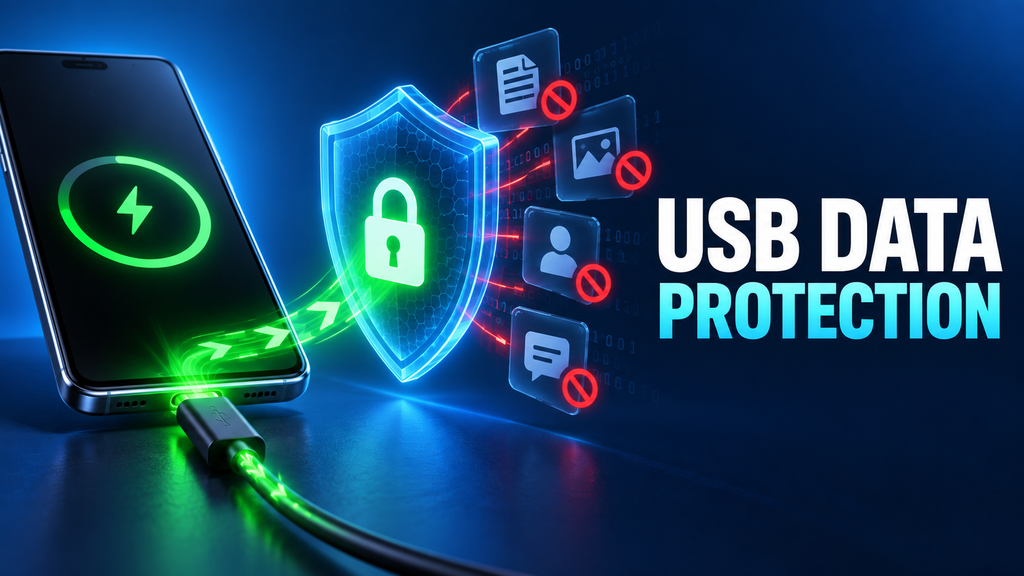
A USB cable does more than charge a phone. Depending on the connection and device settings, it may also carry data.
Android 17 Advanced Protection Mode can restrict USB data signaling. This helps reduce the risk of someone connecting an unknown device or tool to your phone and trying to access its data.
This protection can be useful when charging your phone in public places such as airports, hotels, cafés, train stations, or shared offices.
What can you do?
Even with Android 17 privacy safeguards, follow these simple steps:
- Use your own charger and cable.
- Connect to a power outlet instead of an unknown USB port.
- Keep your phone locked while charging.
- Do not accept an unexpected data-transfer request.
- Choose “Charge only” when Android shows a USB option.
- Turn on Advanced Protection Mode if you need stronger security.
A public charging port is not automatically dangerous, but using your own charger gives you more control.
6. Encrypted Client Hello Can Hide More Network

Information
When an app connects to an online service, parts of the connection may reveal which domain it is trying to reach. The content can be encrypted while some connection details remain visible to a network operator.
Android 17 adds platform support for Encrypted Client Hello, commonly called ECH.
ECH is part of modern TLS security. It can encrypt the Server Name Indication used at the beginning of a connection. In simple terms, this makes it more difficult for someone watching the network to identify the specific domain an app is contacting.
What Android 17 privacy means for browsing
Imagine putting a private letter inside a sealed envelope. Encryption protects the letter, but information written outside the envelope may still reveal where it is going.
ECH helps hide more of that outside information.
However, this is not a magic invisibility switch. It does not hide every part of your internet activity, and it is not the same as using a VPN. Apps, networking libraries, DNS services, and websites must support the required technology.
Google says networking tools such as WebView and other libraries are expected to use Android 17’s ECH support through future updates.
Do you need to activate it?
Most users will not have a separate ECH button. Protection will depend on the apps and services they use.
Your best action is simple: keep Android, Chrome, Android System WebView, and your important apps updated.
7. Stronger App Signing Prepares Android for Future Threats
Android uses digital signatures to confirm an app’s identity and help prevent unauthorized changes.
Android 17 adds support for a hybrid APK signature system that combines a traditional signing key with post-quantum cryptography. Google calls this PQC APK Signing.
Powerful quantum computers are not currently breaking ordinary Android apps. The purpose of this feature is to prepare app security for possible future threats.
Why app signing matters to normal users
You do not see an app signature when opening Instagram, a banking app, or a budgeting app. It works in the background.
A valid signature helps Android check that:
- An app update comes from the expected source.
- The app has not been secretly changed.
- A fake update cannot easily replace the trusted app.
This Android 17 security feature is mainly for app developers and Google Play. Users do not need to create or manage cryptographic keys.
Your role is to install apps from trusted sources and avoid fake update files sent through messages or unknown websites.
Android 17 Privacy Settings You Should Check
New Android protections are useful, but your existing settings still matter. Take a few minutes to review the following areas after updating your phone.
Review app permissions
Open:
Settings → Security and privacy → Privacy → Permission manager
The names may differ slightly depending on your phone brand.
Check which apps can access:
- Camera
- Microphone
- Contacts
- Location
- SMS
- Phone
- Photos and videos
Remove access when an app no longer needs it. A flashlight app, simple game, or calculator should not normally need your contacts or SMS messages.
Keep Google Play Protect enabled
Open the Google Play Store, tap your profile picture, and select Play Protect.
Check that app scanning is active. Play Protect can check installed apps and warn you about known harmful behavior.
Install security updates
Go to:
Settings → Security and privacy → System and updates
Check both the Android security update and Google Play system update.
A major Android version alone is not enough. Monthly security updates often repair weaknesses that attackers could otherwise use.
Use a strong screen lock
A six-digit PIN is generally harder to guess than a four-digit PIN. Avoid easy choices such as:
- 0000
- 1234
- Your birth year
- Repeated numbers
- The last digits of your phone number
Biometric unlock is convenient, but keep a strong PIN or password as your main backup.
Does Android 17 Make Your Phone Completely Private?
No operating system can make a phone completely private or impossible to hack.
Android 17 privacy features reduce several important risks, but the result also depends on your phone maker, installed apps, update status, and personal choices.
An app can still collect information that you knowingly give it. A fake website can still steal a password that you enter. A scammer can still convince someone to share an OTP or install a dangerous app.
Think of Android 17 as a stronger door and lock. It improves protection, but you still need to decide who you let inside.
Android 17 Privacy: Which Feature Should You Use First?
If Advanced Protection Mode is available on your device, consider it first—especially if you do not sideload apps.
After that:
- Review sensitive app permissions.
- Keep Play Protect turned on.
- Use the Contact Picker when supported.
- Remove SMS access from unnecessary apps.
- Avoid APK files sent through messages.
- Keep Android and your apps updated.
- Use your own charger in public places.
These steps do not take long, but they can reduce the amount of personal information exposed to unsafe apps and common scams.
Frequently Asked Questions
Is Android 17 more private than Android 16?
Android 17 adds new privacy and security tools, including the Contact Picker, wider SMS OTP protection, Encrypted Client Hello support, Advanced Protection Mode, and post-quantum app signing support.
The real level of protection depends on your device, installed updates, and whether apps support the new tools.
Does Android 17 stop apps from reading OTP codes?
Android 17 adds stronger controls for certain SMS verification messages. An app that is not connected to the intended domain may be blocked from reading a protected code for three hours.
This does not mean every OTP scam will disappear. You should never share a code with another person.
Will Android 17 stop all harmful APK files?
Advanced Protection Mode can block installation from unknown sources when enabled. Google Play Protect also scans apps for harmful behavior.
No detection system is perfect, so you should still avoid APK files from messages, pop-ups, unofficial download pages, and unknown senders.
Can every Android 17 phone use these features?
Availability can depend on the phone manufacturer, device model, region, app support, and software version. Some features work at the Android platform level, while others must be adopted by app developers.
Is Advanced Protection Mode suitable for everyone?
It can be useful for anyone who wants stronger security. However, people who regularly install apps from outside trusted stores may find its restrictions inconvenient.
Final Thoughts
The best part of Android 17 privacy is not one dramatic feature. It is the move toward giving apps less unnecessary access.
The Contact Picker can protect your address book. OTP controls can make verification codes harder for unrelated apps to read. Advanced Protection Mode can block risky installations and restrict USB data. ECH can hide more connection information, while stronger app signing prepares Android for future threats.
Some of these protections work quietly in the background. Others depend on one simple choice from you.
Keep your phone updated, check app permissions, avoid unknown APK files, and turn on stronger protection when it becomes available. Those small actions can make Android 17 much safer for your personal and financial information.